Sign up & set up
This guide takes you from zero to your first morning brief. For a single agency with one ad account connected, the whole thing takes under 30 minutes.
1 · Create your account
Head to cosma.ad and click Sign up for beta, then Sign up — $9.99/mo. Create your account with email or Google. (Authentication is handled by our provider, so Cosma never stores your password.)
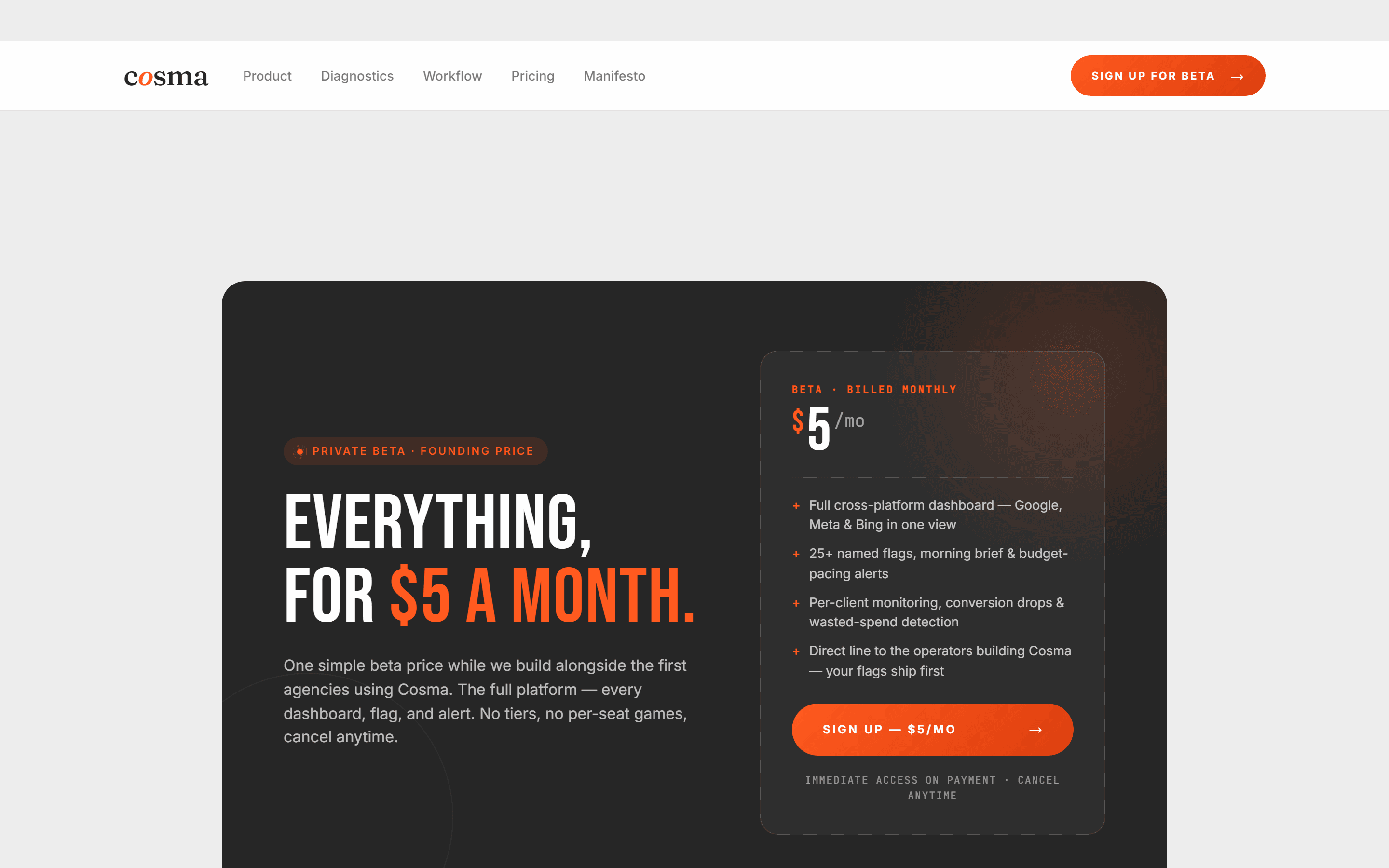
2 · Add payment — $9.99/month
Right after creating your account, you'll add a payment method and start your $9.99/month beta subscription, billed monthly with the full platform included and cancel-anytime. Payment is handled securely by our payment provider; Cosma never sees your card details.
3 · Tell us how you'll use Cosma
With payment done, onboarding begins. First, choose whether you're an agency (managing ads for multiple clients) or running ads for a single business. This shapes how clients and workspaces are organized.
4 · Name your workspace
Give your agency (or business) a name. This becomes your workspace — the top-level container for all your clients, ad accounts, alerts, and reports.
5 · Add your first client
If you chose agency, add your first client next. A client groups together everything for one brand you manage — its ad accounts across platforms, its settings, and its reports.
6 · Connect an ad platform
Now connect at least one ad platform so Cosma can start pulling data. We support Google Ads, Meta, and Microsoft (Bing) Ads. Click Connect next to a platform and authorize access — Cosma requests read-only access, so it can never change a budget, bid, or creative on its own.
After authorizing, pick which ad account to connect (if the login has access to more than one), and Cosma begins its first sync.
7 · Wait for the first sync
Cosma pulls your recent history so the dashboard, flags, and brief have something to work with. The initial sync runs in the background — you'll see a syncing indicator, and the dashboard fills in as data lands. A first sync of recent data typically completes within a few minutes; full historical backfill continues afterward.
You're set up
That's it — your account is live and data is flowing. Here's the dashboard you'll land on:
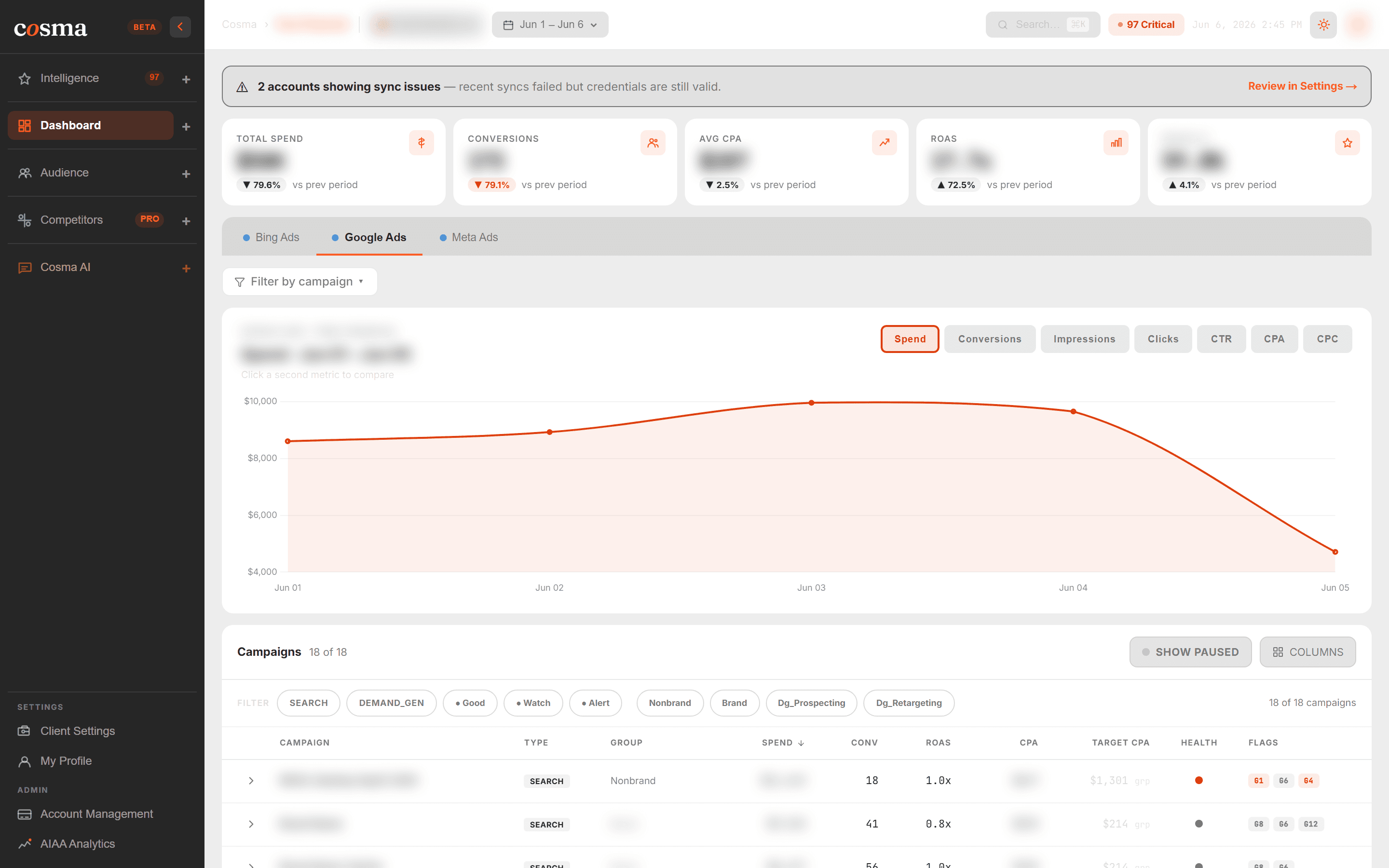
Next, learn how to read your Morning Brief, then set up Alerts and Monitoring so Cosma watches your accounts for you.