Alerts & digests
Alerts push Cosma's findings to your inbox and Slack so you don't have to open the dashboard to know something changed. They fire per-client, at the right local hours, with no noise.
Where to find alerts
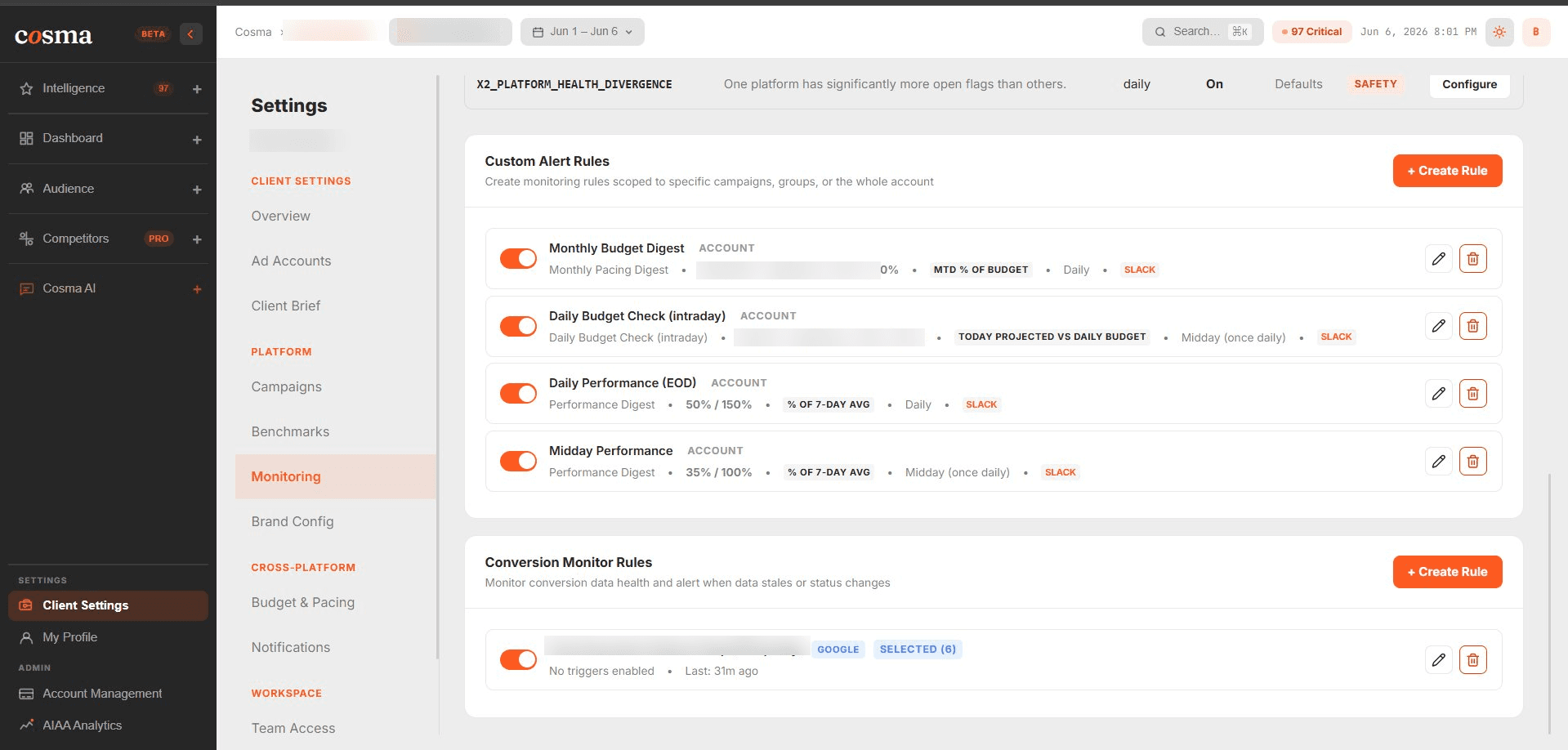
Open Client Settings from the sidebar. Alert rules live under the Monitoring section; delivery channels under Notifications. Settings are per-client, so switch clients at the top to configure each one.
1 · Connect a delivery channel
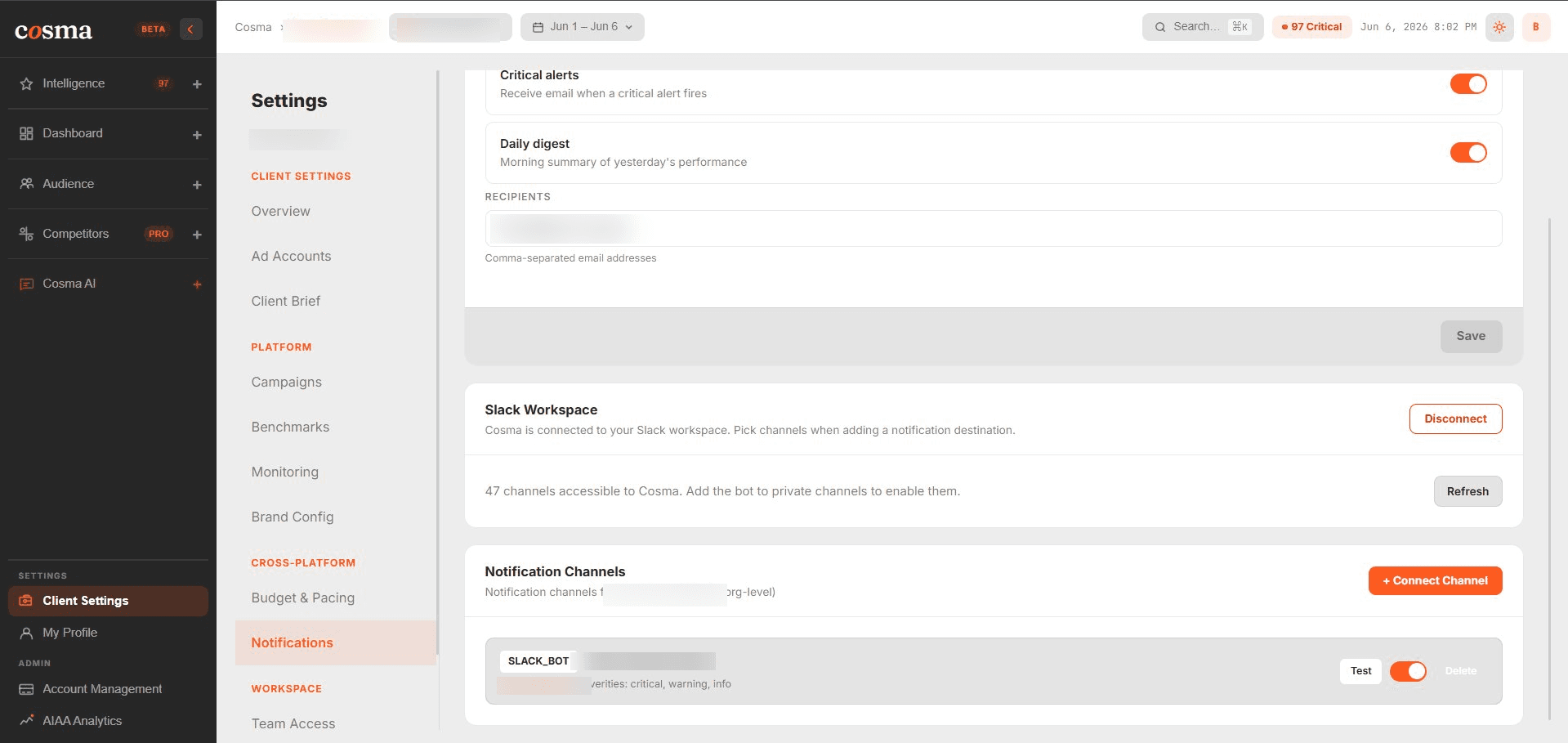
Before creating rules, decide where alerts should land:
- Email — sent to your team members' addresses.
- Slack — connect Slack once, then route alerts to a channel (e.g. #fora-financial) or a direct message.
2 · Create an alert rule
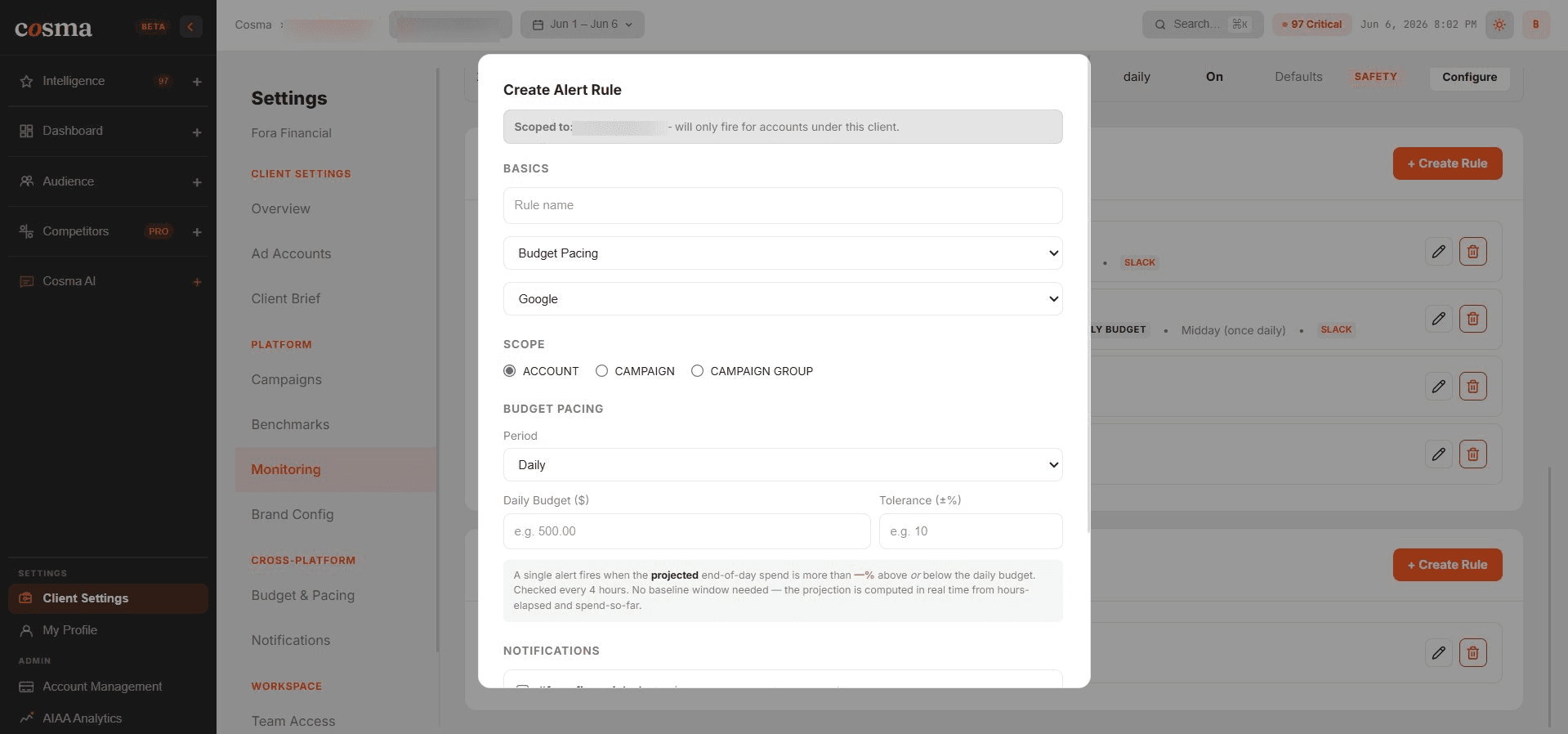
Click New rule and choose the type. Cosma ships these alert types:
- Performance Digest — a roundup of how the account performed, delivered at a time you choose (e.g. a midday and an end-of-day digest).
- Budget Pacing — flags when spend is pacing ahead of or behind plan.
- Monthly Pacing Digest — a month-level pacing summary.
- Daily Budget Check — an intraday check that catches budget-cap throttling the same day.
3 · Set the threshold & timing
Depending on the type, configure:
- Threshold — a fixed number, or a smart threshold relative to the trailing 7-day average (% of 7-day avg).
- Frequency & time — daily, hourly, midday, or midday + end-of-day. Digests fire at the correct local hour for the client's timezone.
- Scope — whole account, or a specific platform / campaign group.
4 · Save & verify
Save the rule. It appears in the rules list with its type, frequency, and scope. You can edit, pause, or delete any rule from there. New rules take effect on their next scheduled run.
Next: set up Monitoring for conversion-drop and wasted-spend detection.